
TL;DR:
- Toast Tables is an integrated reservation and waitlist system within the Toast POS ecosystem that helps restaurant and hotel operators manage guest flow from booking to seating.
- Proper setup requires supported iOS or Android tablets, complete configuration in Toast Web, stable Wi-Fi, and enabling online reservations and deposits before service.
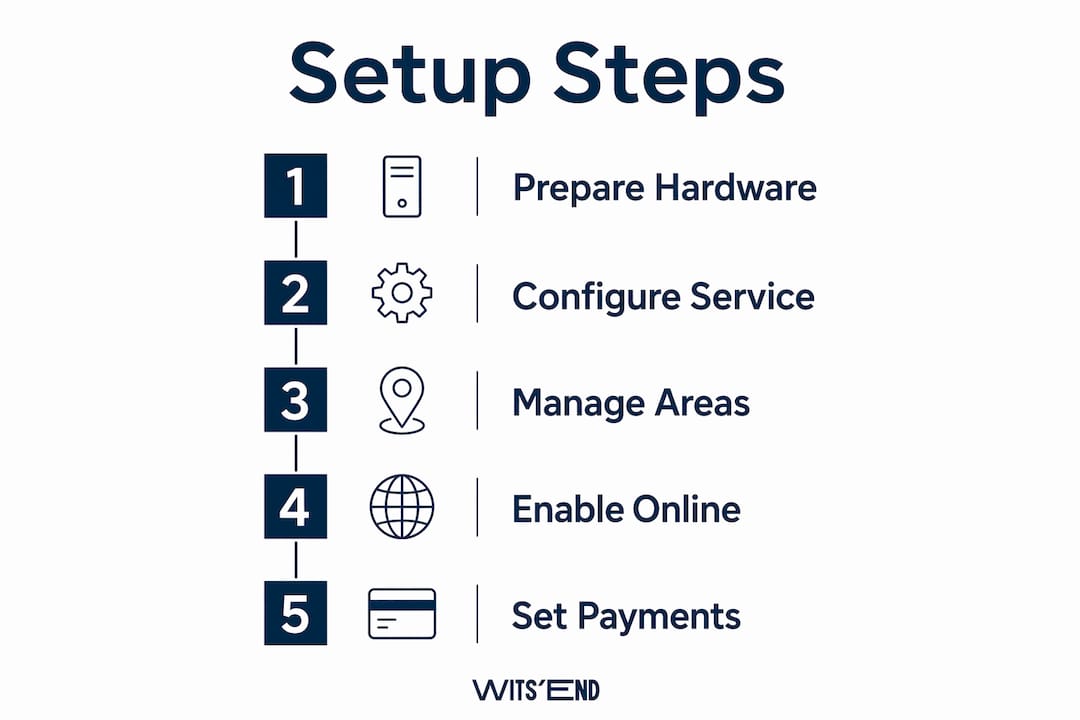
Toast Tables is an integrated waitlist and reservation management solution built directly into the Toast POS ecosystem, giving restaurant and hotel operators a single platform to manage guest flow from booking to seating. This toast reservation system setup guide covers every configuration step you need: hardware requirements, service period setup, dining area capacities, online booking controls, and deposit automation. Follow these steps and your front-of-house team will spend less time on the phone and more time delivering service. The core tools you need are Toast Web, the Toast Tables app, and a supported iOS or Android tablet.
What hardware and software do you need before setup?
Toast Tables runs on iPad and Android tablets, but the OS requirements are strict. Your tablets must run iOS 17+ or Android 14+ before you install the app. Running an older OS version is the most common reason the app fails to sync on day one.

Once your tablets meet the OS requirements, download the Toast Tables app from the App Store or Google Play. Log in with your Toast Web credentials. The app pulls your floor plan, service periods, and dining area configurations directly from Toast Web, so your web settings must be complete before you open the app on the floor.
Network stability is not optional. Tablets sync within 10 seconds when the network is healthy. That speed matters when a host is seating a party and needs the floor plan to update in real time across multiple stations.
- Supported devices: iPad (iOS 17+) and Android tablets (Android 14+)
- Required accounts: Toast Web admin access with reservation permissions enabled
- Network: Stable Wi-Fi with consistent coverage across the host stand and dining room
- App: Toast Tables, downloaded and logged in before service
Pro Tip: Complete all Toast Web configuration before launching the Toast Tables app on your tablets. The app reads from Toast Web on startup, so any settings you change in the web portal after launch require a manual refresh on each device.
How to configure service periods, dining areas, and table capacities in Toast Web
Service periods are the foundation of your reservation schedule. Each service period defines a shift name, start time, end time, and the dining areas that are active during that window. You create and manage these in Toast Web under the Tables section.
- Log in to Toast Web and navigate to Tables > Service Periods.
- Click Add Service Period and name it (e.g., Lunch, Dinner, Brunch).
- Set the start and end times for the period.
- Assign the dining areas that are open during that shift.
- Save and repeat for each service window your venue runs.
Dining areas represent physical sections of your restaurant: the main floor, patio, bar seating, or private dining room. Each dining area needs a table layout and a capacity assigned to every table. Accurate capacity data is what prevents Toast Tables from double-booking a four-top with a party of six.
| Setting | Where to configure | Why it matters |
|---|---|---|
| Service period hours | Toast Web > Tables > Service Periods | Controls when reservations are accepted |
| Dining area availability | Toast Web > Tables > Dining Areas | Sets the percentage of tables available for online booking |
| Table capacity | Toast Web > Tables > Floor Plan | Prevents over-seating and booking conflicts |
| Combo tables | Toast Web > Tables > Floor Plan | Supports large party configurations permanently |
Online booking availability is controlled by a percentage setting per dining area. Dining area availability must be set above 0% for guests to book online. Setting it to 50% means half your tables in that area are available for online reservations, while the other half are held for walk-ins. This is a practical tool for venues that want to protect walk-in capacity during peak hours.
Pro Tip: For special events or holidays, use Toast Tables Schedules to create a separate rule set. Schedules let you apply distinct reservation rules for specific dates without touching your regular service period settings.
How to enable and manage online reservations and waitlists
Enabling online reservations is a two-step process. You must turn on the global reservation control first, then enable online access at the individual shift level. Skipping the global toggle is the single most common setup error operators make.
- In Toast Web, go to Tables > Reservation Controls.
- Toggle Enable Reservations to on.
- Navigate to your service periods and open each shift.
- Toggle Online Reservations to on for each shift where you want guests to book.
- Confirm that your dining area availability is set above 0% for each active area.
Once online reservations are live, you can create, edit, and cancel reservations from both the Toast Tables app and Toast Web. The app is the faster option during service. The web portal is better for advance planning and bulk edits.
Waitlist management works alongside reservations. When a guest arrives without a booking, the host adds them to the waitlist in the Toast Tables app and assigns an estimated wait time. The system sends the guest an SMS notification automatically when their table is ready.
- Reserve with Google integration lets guests book directly from your Google Business Profile. This reduces friction for first-time guests who find you through search.
- SMS notifications go out at key moments: waitlist confirmation, table ready, and reservation reminders.
- Cancellations and no-shows are logged in the system, giving you data to identify patterns over time.
Pro Tip: Review your restaurant reservations configuration after your first two weeks of live operation. Real service conditions almost always reveal a capacity setting or shift window that needs adjustment.
How to set up deposits, cancellation fees, and payment automation
Deposits and cancellation fees protect your revenue from no-shows. The setup requires three things: enabling the correct POS order setting, creating alternate payment types, and attaching deposit rules to your shifts and dining areas.
- In Toast Web, go to Tables > Settings and enable Start Order on POS. This setting tells Toast to open a POS check at seating so the deposit balance applies automatically.
- Navigate to Payment Options and create a new alternate payment type for deposits. Name it clearly (e.g., "Reservation Deposit").
- Set Treat as Discount to Yes on this payment type. This setting ensures tips calculate on full order totals, not on the post-deposit amount.
- Create your deposit rules in Tables > Deposits, specifying the amount per guest or flat fee.
- Attach each deposit rule to the relevant shifts and dining areas.
Cancellation fees follow the same structure as deposits. Create a separate alternate payment type for cancellation fees and attach it to the schedules where you want it enforced. Without this attachment, the fee rule exists in the system but never triggers.
The deposit balance applies automatically at seating when "Start Order on POS" is active. Your servers do not need to manually enter the deposit credit. That removes a step from the checkout process and reduces the chance of a deposit being missed at close.
Pro Tip: Test your deposit flow end-to-end before going live. Make a test reservation, apply a deposit, seat the party, and run through checkout. Confirm the deposit appears as a credit and that the tip calculates on the full pre-deposit total.
What are common troubleshooting issues with Toast Tables?
Most guest booking failures trace back to configuration gaps, not technical errors. Before you call Toast support, run through this checklist.
- Global reservation toggle: Confirm that Enable Reservations is on in Toast Web > Reservation Controls. Check the global toggle first before adjusting any shift-level settings.
- Dining area availability: Verify that each active dining area has availability set above 0%. A dining area at 0% is invisible to online bookers.
- Service period hours: Confirm that the shift times in Toast Web match your actual operating hours. A shift that ends at 9:00 PM will block bookings for a 9:30 PM seating.
- Tablet sync delays: If tablets take more than 10 seconds to sync, the issue is your network. Syncing delays beyond 10 seconds signal network problems, not a software bug. Check your router and Wi-Fi coverage at the host stand.
- Large party conflicts: For parties that exceed your standard table sizes, use Advanced table selection during reservation creation. Advanced table selection temporarily combines tables for that reservation without permanently altering your floor plan.
Operators who set up Toast Tables correctly from the start rarely hit these issues. The problems almost always come from rushing through Toast Web before the first service.
Key takeaways
A complete Toast Tables setup requires correct OS versions, accurate dining area availability above 0%, and the global reservation toggle enabled before any shift-level settings take effect.
| Point | Details |
|---|---|
| Hardware requirements | Tablets must run iOS 17+ or Android 14+ before installing the Toast Tables app. |
| Dining area availability | Set availability above 0% per dining area or online booking will not work. |
| Global toggle first | Enable reservations globally in Toast Web before configuring individual shifts. |
| Deposit configuration | Enable "Start Order on POS" and set "Treat as Discount" to Yes for accurate tip calculations. |
| Troubleshooting sync issues | Tablet sync delays over 10 seconds indicate a network problem, not a software failure. |
What operators get wrong about reservation systems
Most operators treat Toast Tables as a digital version of the reservation book. That framing undersells what the system actually does. When I work with clients who are setting up Toast Tables for the first time, the conversation usually starts with "how do we take bookings online" and ends with "how do we use this data to fill the room on a Tuesday."
The shift matters. Reservation data integrated with SMS and email marketing lets you proactively reach guests during slow periods. That is not a feature most operators turn on during initial setup. It gets left for later, and later never comes.
The other thing I see consistently: operators configure Toast Tables once and never revisit it. Your dining room changes. Your service periods shift with the seasons. A configuration that worked in march may be blocking bookings by october because a shift end time was never updated. Build a quarterly review of your Toast Web settings into your operations calendar. It takes 30 minutes and it catches problems before guests do.
Staff training is the final piece. The Toast Tables app is intuitive, but hosts who understand why the system is configured the way it is will use it better than hosts who just know which buttons to press. Spend 20 minutes walking your front-of-house team through the logic of service periods and dining area availability. That context changes how they handle edge cases during a busy service.
— Chris
How Wits' End Solutions supports your Toast setup and beyond
Getting Toast Tables configured correctly is the starting point, not the finish line. At Wits' End Solutions, we work with restaurant and hotel operators across the U.S. to build systems that hold up under real service conditions. That includes hands-on setup support, staff training programs, and deep analytics for hospitality that turn your reservation data into revenue decisions. If your team needs a faster path to a working system, or you want a second set of eyes on a configuration that is not performing, our hospitality operations consulting team is built for exactly that. We have done this work ourselves before we ever recommend it to you.
FAQ
What tablets work with Toast Tables?
Toast Tables supports iPad and Android tablets. Devices must run iOS 17+ or Android 14+ to install and operate the app correctly.
Why are guests unable to book online?
The two most common causes are a disabled global reservation toggle in Toast Web and dining area availability set at 0%. Check both settings before investigating anything else.
How does the deposit system work in Toast Tables?
Enabling "Start Order on POS" opens a POS check at seating and applies the deposit balance automatically. The "Treat as Discount" setting on the payment type keeps tip calculations based on the full pre-deposit total.
Can I set different reservation rules for holidays?
Yes. Toast Tables Schedules lets you create special date rules that apply distinct reservation settings without changing your regular service period configuration.
What causes tablet syncing to slow down?
Sync delays beyond 10 seconds are caused by network instability, not the Toast Tables software. Check your Wi-Fi coverage and router performance at the host stand.